Structured expense intake form
Staff submit expense requests with amount, category, vendor, business justification, and receipt upload. Forms validate required fields before submission and create governed workflow records automatically.
Expense Approval Workflow
Most expense approval processes live in email chains, spreadsheets, or a finance inbox. Kintable replaces them with a governed workflow: structured intake form, spend-tier routing, multi-step approval chain, audit trail, and accounting sync — generated in under an hour from one prompt.
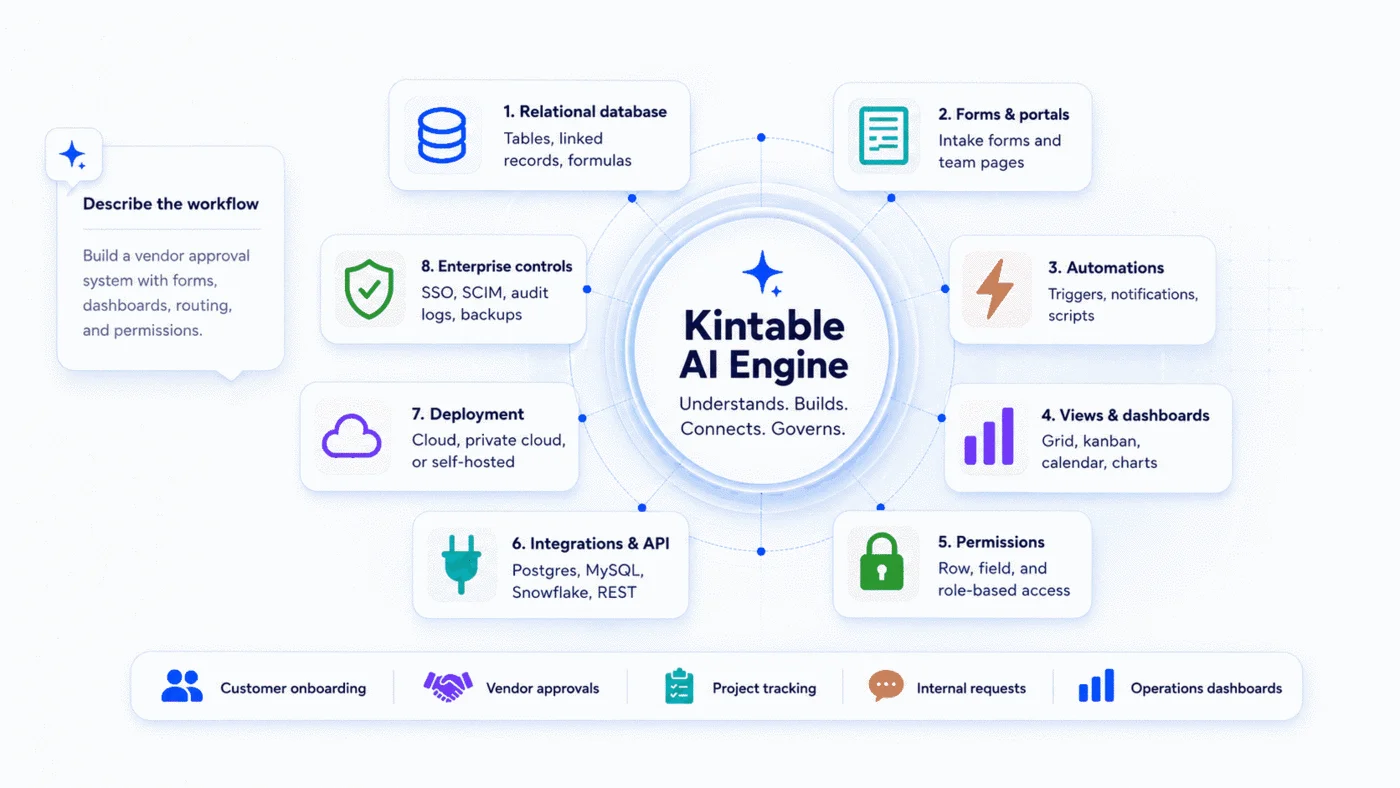
From intake form to accounting sync — generated as one unified workflow, not assembled from separate tools.
Staff submit expense requests with amount, category, vendor, business justification, and receipt upload. Forms validate required fields before submission and create governed workflow records automatically.
Route automatically by amount: direct manager for under $500, department VP for $500–$5K, CFO for over $5K. Add custom thresholds, per-category rules, and out-of-policy exceptions — all generated from the workflow description.
Every submission, approval, rejection, and escalation logged with actor, timestamp, and prior value. Exportable for finance review, internal audit, and tax documentation.
Approved expenses sync automatically to QuickBooks Online, Xero, or NetSuite. GL codes assigned by category. No manual re-entry between the approval system and the accounting system.
If an approval sits idle for more than N hours, auto-escalate to the next reviewer and notify via Slack or email. Configurable per tier and per department.
SAML 2.0 SSO and SCIM provisioning so IT can deploy the expense approval system under the same identity governance as other enterprise tools.
The strongest prompt names the spend tiers, the approvers at each tier, what gets auto-approved vs. flagged, and where approved expenses go.
"Create an expense approval workflow. Employees submit reimbursement requests with receipt photos, amount, category, and business purpose. Auto-approve travel expenses under $50. Route $50–$500 to the department manager. Route $500–$2,500 to the VP of Finance. Route over $2,500 to the CFO. Notify the employee by email at each step. Sync approved expenses to QuickBooks with the correct GL code by category. Flag any out-of-policy submissions for finance review."
Every team has a slightly different expense approval policy. Kintable generates department-specific rules within one unified system.
High-frequency T&E reimbursements with receipt capture, per-diem limits, and auto-approval under threshold — submitted from mobile.
Software subscriptions, hardware, and conference fees — routed by category with separate thresholds for recurring vs. one-time spend.
Candidate interview expenses, employee wellness stipends, and team offsite budgets — with budget tracking and department rollup reports.
Capital expenditure requests, vendor payments, and out-of-policy escalations — with CFO approval path, PO matching, and QuickBooks sync.
Expense approval workflows in Kintable come with the governance layer IT needs for approval before deployment.
Teams building expense approval workflows are also exploring purchase order approval, finance approval workflow software, and vendor management.
Broader finance approval workflows including PO routing, budget exceptions, payment authorization, and QuickBooks sync.
Purchase order approval, vendor authorization, and procurement governance with spend-tier routing and audit trail.
The full category hub — approval workflows for finance, HR, legal, procurement, and operations teams.
Short answers for teams evaluating expense approval workflow options.
Expense approval workflow software automates the process of submitting, routing, approving, and recording employee expenses. It replaces email-based approval chains with a governed system: a structured intake form, spend-tier routing rules, multi-step approval chains, notification alerts, and an audit trail that logs every decision. Kintable generates this system from a plain-English description of the expense policy — routing thresholds, approvers, accounting codes, and integration with QuickBooks or Xero.
To automate expense approvals: (1) define the intake form — what employees submit and what fields are required; (2) set the routing rules — which spend amounts go to which approvers; (3) configure notifications and escalations; (4) connect to the accounting system for approved expense sync. In Kintable, all four steps are generated from a single plain-English prompt describing the expense policy, with the accounting integration included.
A well-designed expense approval workflow includes: a structured intake form with receipt upload, spend-tier routing rules (e.g. under $500 to manager, over $500 to VP), a notification system for approvers and requesters, SLA timers with escalation paths for stalled approvals, a compliance audit trail logging every decision, and integration with the accounting system for approved expense sync. Kintable generates all of these as a unified system.
Most expense approval workflows take under an hour to generate in Kintable. Describe the expense policy — spend tiers, approvers, categories, and accounting integration — in plain English. Kintable generates the intake form, routing rules, approval chain, notifications, audit trail, and QuickBooks or Xero connection. More complex policies with per-department rules or multi-currency support typically take one to two hours to configure after the initial generation.
Yes. Kintable connects to QuickBooks Online and Xero natively. When an expense is approved in the workflow, it syncs automatically to the connected accounting system with the correct GL code based on expense category. No manual re-entry is required. The integration is configured as part of the workflow generation — describe which categories map to which GL codes and Kintable sets up the sync.
Kintable generates the intake form, spend-tier routing, audit trail, and QuickBooks sync — ready in under an hour.